support@zurihr.com
+254 757 012345
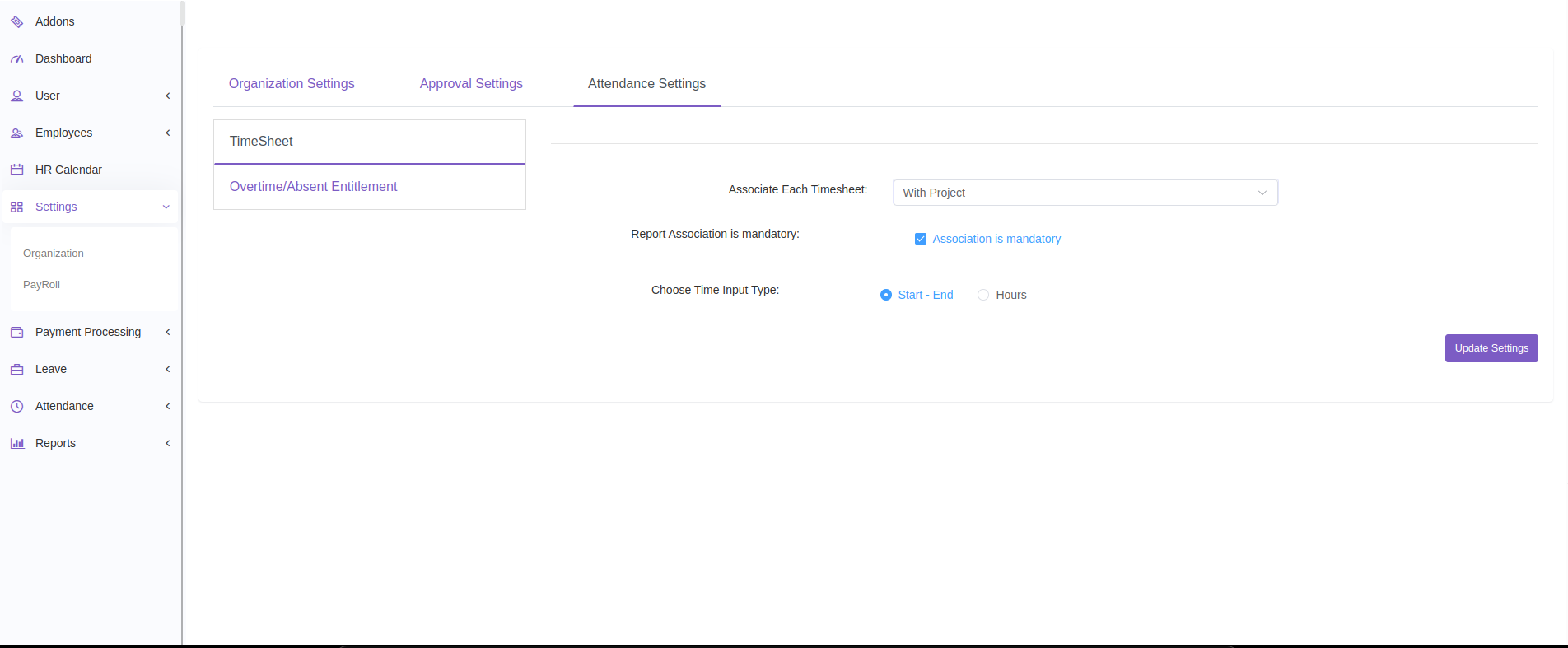
Zuri HR gives you the flexibility to manage Timesheet settings and define Overtime/Absent entitlements for employees. Here’s how to set it up:
Open your Zuri HR system URL in a browser.
Enter your admin credentials and click Log In.
In the left-hand menu, click on Settings.
Under Settings, go to the Organization submenu.
You’ll see 3 tabs at the top:
Organization Settings
Approval Settings
Attendance Settings
Click the Attendance Settings tab to proceed.
You’ll find two options listed on the left:
Timesheet
Overtime/Absent Entitlement
Under the Timesheet tab, you can configure how employee working hours are recorded:
Set Associate:
Choose how timesheets should be linked:
None – No project or task association
With Project – Link timesheets to specific projects
Choose Time Input Type:
Start - End Time – Employees enter when they start and stop work
Total Hours – Employees input total hours worked per day
Once done, click Update Settings to save your preferences.
This section allows you to select which employees are eligible for overtime or absence tracking:
You’ll see a list of employees.
Use the checkboxes to select employees who should be entitled to Overtime or Absent days tracking.
Click Update Data to apply changes.
Use the With Project option if you're tracking time per client or task.
Keep your Time Input Type consistent across the company for easier reporting.
Only enable Overtime/Absent Entitlement for employees who qualify under your HR policy.
Need Support?
Email us at support@zurihr.com or talk to your Zuri HR system admin for further assistance.