support@zurihr.com
+254 757 012345
ZuriHR allows HR administrators to create and manage different types of leave categories tailored to the organization’s policies—such as annual leave, sick leave, maternity leave, and more.
From the ZuriHR dashboard, go to Leave.
Click on Leave Categories.
You will find two tabs:
Leave Categories – Displays all existing leave types (ZuriHR provides default categories when an account is created).
Add New Category – Used to create a new custom leave type.
Click the Add New Category tab.
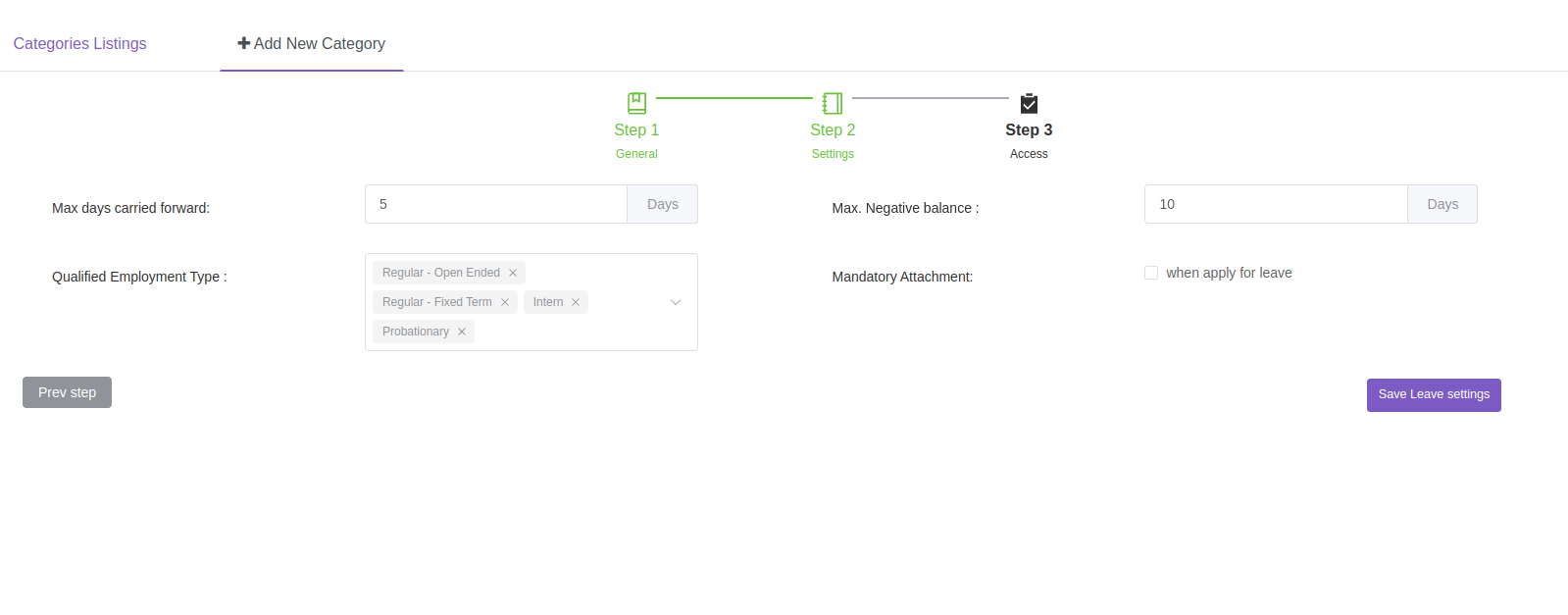
You’ll go through a 3-step configuration process:
Leave Code – A unique code to identify the leave type.
Title – The name of the leave category (e.g., “Annual Leave”).
Other descriptive and administrative fields.
Leave Accrual – Define whether leave is accrued monthly or annually.
Start Date – Set when the accrual begins (e.g., from date of employment or calendar year).
Eligibility Rules – Define who can apply (e.g., by Employment Type).
Max Carry Forward Days – Set how many unused days can be carried forward.
Attachment Requirement – Enable if supporting documents (e.g., medical certificate) are required.
Once all fields are completed:
Click Save to finalize the category.
After saving, proceed to set up employee-specific settings such as:
Entitlement – Total leave days allotted.
Starting Balance – Leave balance at the start of tracking.
Employees can now apply for leave using the configured categories, and requests will follow the set approval process.