support@zurihr.com
+254 757 012345
Zuri HR gives you powerful tools to customize how employee payroll is calculated, including earnings, benefits, deductions, loans, and more.
Follow this guide to set up your Payroll Settings with ease.
Open your Zuri HR system in a browser.
Enter your admin credentials and click Log In.
From the left-hand menu, go to Settings.
Select the Payroll submenu.
At the top, you will see these four tabs:
Payroll Settings
Formulas
Payslip Design
General Setting
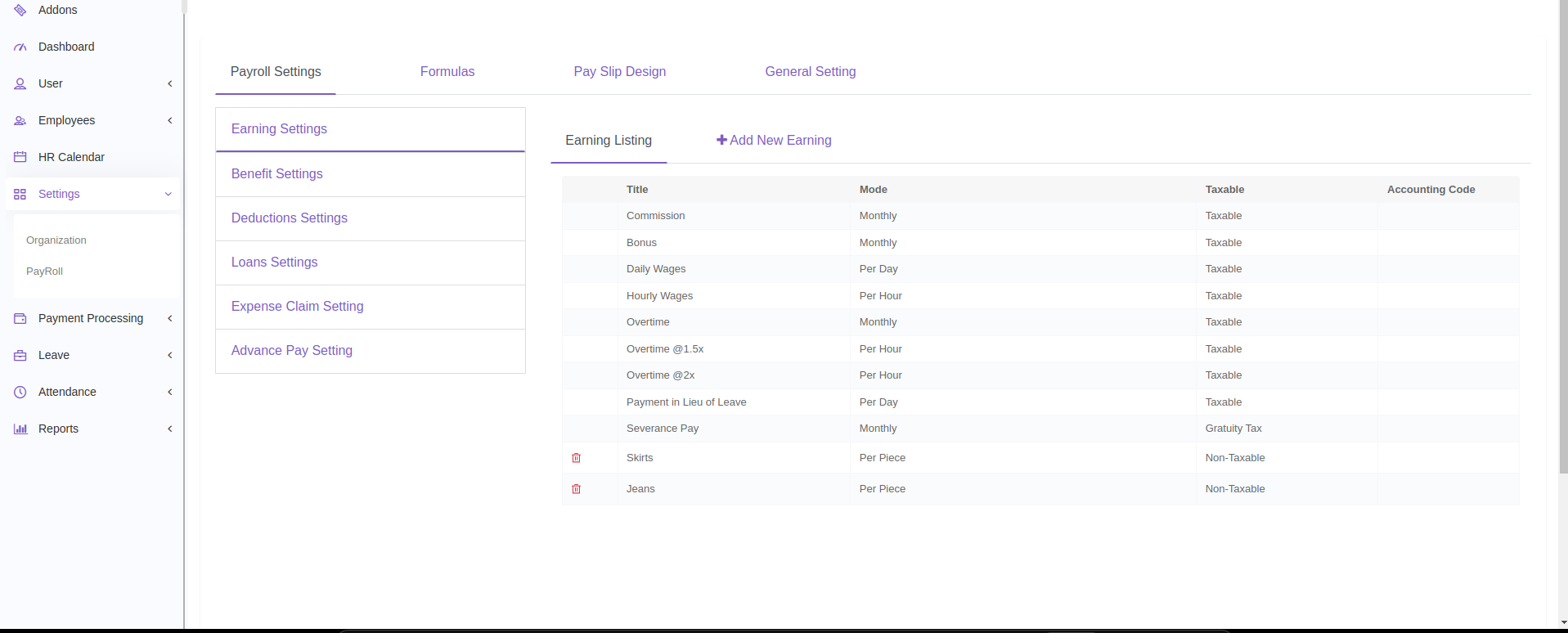
Click on the Payroll Settings tab to proceed.
On the left sidebar, you’ll find these options:
Earning Settings
Benefit Settings
Deductions Settings
Loan Settings
Expense Claim Settings
Advance Pay Settings
Here’s how to manage each:
Click on Earning Settings.
View all existing earning categories under the Listing tab.
To add a new earning:
Click the Add New Earning tab.
Fill in the required details (e.g., Earning Title, mode).
To edit an earning, click on its name if it's not system-generated, you can modify it.
Click on Benefit Settings.
View all listed benefits under the Listing tab.
To add a new benefit:
Go to the Add New Benefit tab and enter details.
You can edit custom benefits by clicking on them. System-generated items cannot be edited.
Click on Deductions Settings.
View all current deductions.
To add a deduction:
Use the Add New Deduction tab.
Click on a deduction to edit, if it's not system-generated.
Click on Loan Settings.
Under the Loan Listing tab, you’ll see existing loan types.
Click Add New Loan to create a new loan category.
You can edit non-system-generated loans by clicking on them.
Click on Expense Claim Settings.
View all expense claim categories.
Click Add New Row to add a new claim category.
To rename a category, click on its name and edit directly.
Click on Advance Pay Settings.
You’ll see two fields:
Allowable Installments – maximum repayment periods
Percentage – maximum percentage of salary allowed as advance
Edit these fields directly to customize your company’s advance pay policy.
System-generated payroll items are pre-defined and cannot be edited.
Always click Save/Create or Update after making any changes.
Be consistent in naming and categorizing payroll elements for clarity in payslips and reports.
Need Help?
Reach out to your payroll admin or contact support@zurihr.com for assistance.