support@zurihr.com
+254 757 012345
ZuriHR allows organizations to set up custom approval workflows for various HR-related actions such as leave requests, payroll approvals, overtime, and more.
From the ZuriHR dashboard, go to Settings.
Click on Organisation.
When you create an account for the first time, ZuriHR provides a default settings configuration. You can customize this based on your company’s structure.
Inside the Organisation section, you will see three tabs:
Organisation Settings
Approval Settings
Attendance Settings
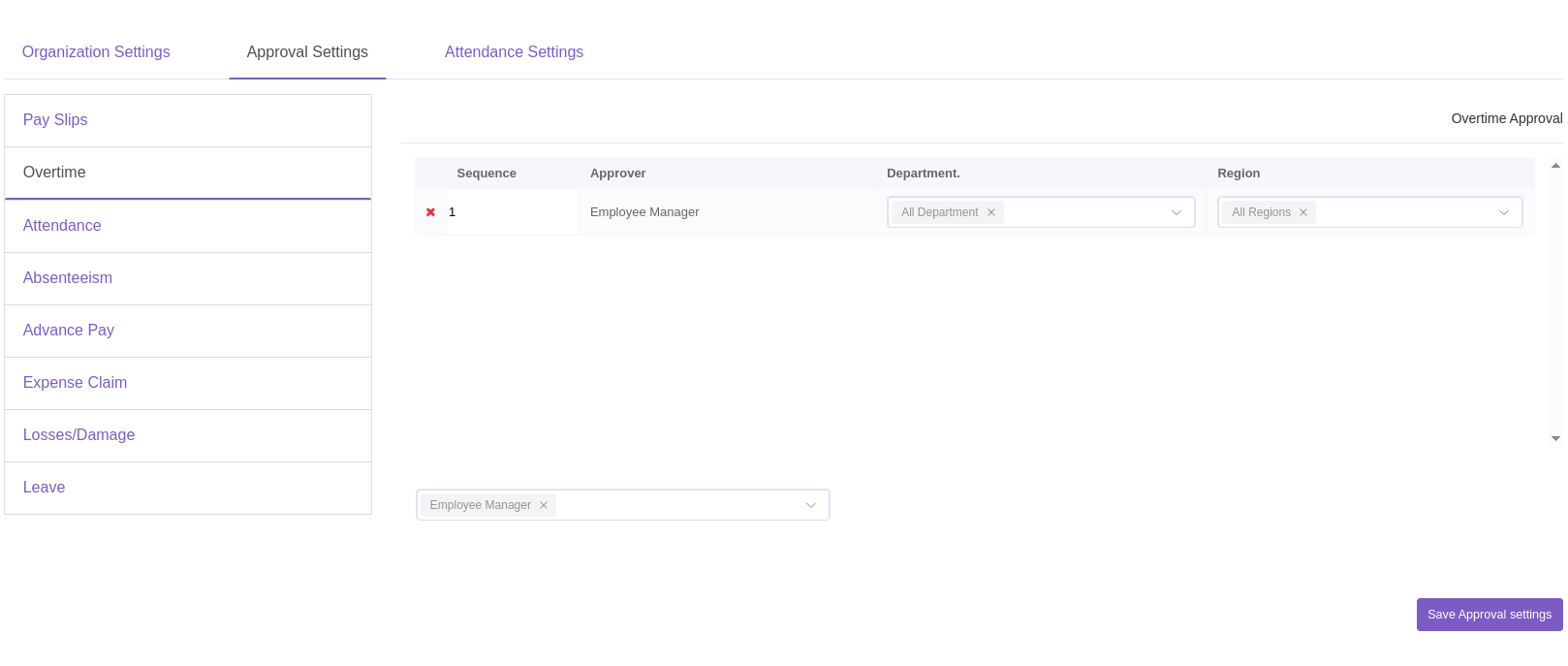
Click on the Approval Settings tab.
You will now see a left-hand menu listing all the approval categories:
Payroll
Overtime
Attendance
Absenteeism
Advance Pay
Expense Claim
Losses/Damage
Leave
Click on any category (e.g., Leave) to view the current list of approvers.
For each approver listed, you will see:
Their approval sequence
The departments they can approve
The regions they are authorized to approve
To add a new approver, scroll to the bottom of the list and select a user from the dropdown.
To change the approval sequence, drag and drop the approvers to reorder them.
Adjust the approval sequence number to match the new order.
Repeat this process for each category listed in the left menu.
Once set up:
System users assigned as approvers will be responsible for authorizing various HR actions.
Approvers will receive email notifications whenever an approval request is pending.
This ensures your organization's workflows remain streamlined and compliant with internal processes.