support@zurihr.com
+254 757 012345
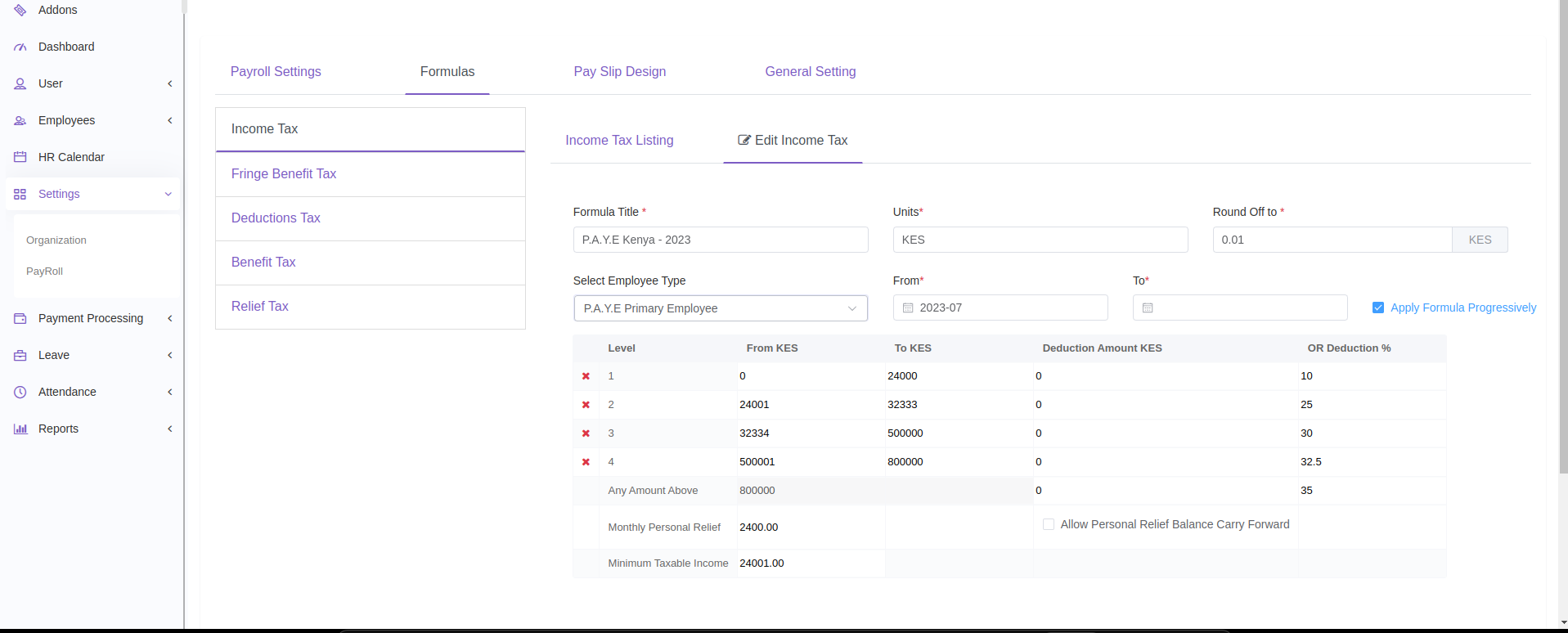
Zuri HR gives you full control over how different types of taxes and reliefs are calculated. Through Formula Settings, you can customize tax formulas for income, fringe benefits, deductions, and more—ensuring your payroll aligns with regulatory and company policies.
Open your browser and log in to your Zuri HR account.
Use your admin credentials for access to payroll settings.
From the left-hand menu, click Settings.
Select the Payroll submenu.
You’ll see 4 tabs at the top:
Payroll Settings
Formulas
Payslip Design
General Setting
Click on the Formulas tab.
In the left vertical menu, you'll see 5 categories you can configure:
Income Tax
Fringe Benefit Tax
Deductions Tax
Benefit Tax
Relief Tax
Each section allows you to add or edit tax calculation formulas, except for system-generated ones.
Click Income Tax from the left menu.
View all current tax brackets or rates in the Listing tab.
To add a new tax formula:
Go to the Add New Income Tax tab.
Define ranges, rates, or fixed amounts as per your organization or country policy.
Click on a non-system-generated entry to edit it.
Navigate to Fringe Benefit Tax.
Use the Listing tab to review existing formulas.
To add a new fringe benefit tax:
Go to Add New Fringe Benefit Tax Formula.
Define how the fringe benefit (e.g., company car, housing) is taxed.
Click to edit any custom-created formula you have created.
Click Deductions Tax on the sidebar.
In the Listing tab, review existing deduction tax formulas.
To add:
Go to Add New Deduction Tax Formula.
Define formulas based on deduction type (e.g., NSSF, SHIF).
Edit custom formulas by clicking on them.
Select Benefit Tax Formula.
View formulas in the Listing tab.
Click Add New Benefit Tax Formula to create a new one.
Define how specific benefits (e.g., Telephone) are taxed.
Click on any custom formula to edit it.
Go to Relief Tax Formula.
Review available relief tax rules in the Listing tab.
Use Add New Relief Tax Formula to define tax reliefs such as:
HOSP Relief
AHL Relief
Edit any non-system-generated entry by clicking on it.
Always double-check your country’s tax rates and brackets before setting formulas.
Only non-system-generated formulas can be edited—system formulas are locked for compliance.
You can test formulas by running dummy payroll for a test employee before applying live.
Need Assistance?
Email support@zurihr.com or consult your internal payroll specialist to ensure compliance with local tax laws.