support@zurihr.com
+254 757 012345
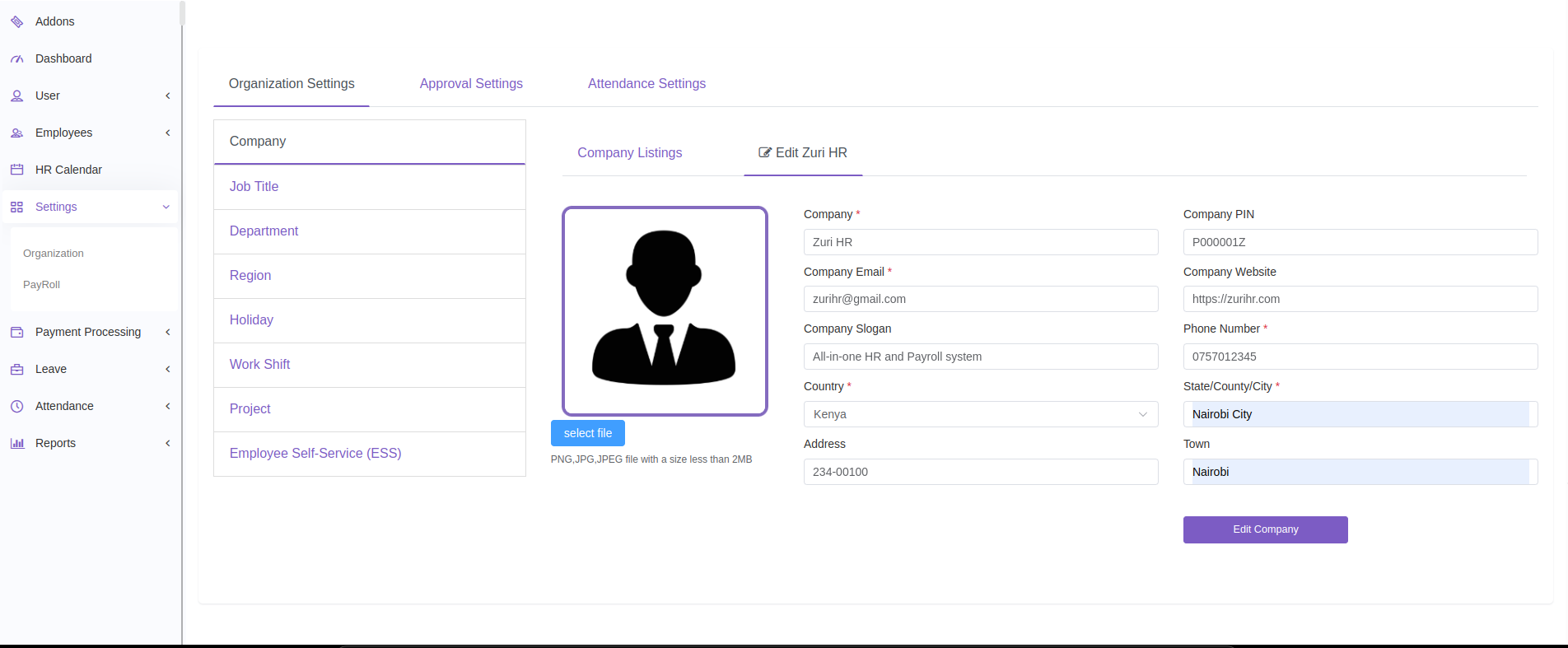
To streamline your HR operations, Zuri HR allows you to define your company’s structure through Organization Settings. Follow the steps below to configure Company, Job Titles, Departments, Regions, Holidays, Work Shifts, Projects, and Employee Self-Service (ESS) access.
Open your browser and go to your Zuri HR system URL.
Log in using your admin credentials.
On the left menu, click Settings.
Under the Settings , click the Organization submenu.
You’ll see 3 tabs across the top:
Organization Settings
Approval Settings
Attendance Settings
Click on Organization Settings to begin setup.
On the left-hand side, you’ll see a vertical menu with the following items:
Company
Job Title
Department
Region
Holiday
Work Shift
Project
Employee Self-Service (ESS)
Click each item to manage that section:
View all companies under the Company Listing tab.
Click Add Company to register a new company.
To edit an existing company, click its name in the list.
View all job titles in a list.
Click Add New Row to create a new job title.
Edit a job title name directly in the list by clicking on it.
Displays a list of all departments.
Click Add New Row to add one.
Edit department names by clicking and typing directly in the list.
View all company regions.
Use Add New Row to add new regions.
Click to edit any region name directly.
See all holidays set for the organization.
Add a new holiday via Add New Row.
You can edit both the name and date directly in the list.
View all shifts under the Work Shift Listing tab.
Click Add New Work Shift to define a new shift (e.g., 9AM–5PM).
To edit an existing shift, simply click its name.
See all projects under Project Listings.
Click Add New Project to register a project (e.g., “Nairobi Expansion”).
Edit project details by selecting it from the list.
Select which menus and modules ESS employees can access.
Customize permissions by ticking/un-ticking available options.
Click Update to save ESS settings.
Use descriptive names for Job Titles and Departments to ensure clarity across the system.
Always click Save or Update after making changes.
Changes reflect instantly across other modules (e.g., Employee Profiles, Payroll, Attendance).
Need Help?
If you get stuck, contact your system administrator or email support@zurihr.com for assistance.