support@zurihr.com
+254 757 012345
To configure devices for employee attendance tracking in ZuriHR, follow these steps:
Log in to your ZuriHR admin dashboard.
Go to Attendance from the main menu.
Click on ClockIn Devices.
You will see two tabs:
Clock-In Device List – View all registered attendance devices.
Add New Device – Register a new device.
Click on the Add New Device tab.
A configuration page will open.
Under Device Category, select the appropriate option:
Biometric Device: Choose this if you're using a physical biometric reader. Complete the required device capture and other configuration fields as needed.
Mobile Login: Choose this for mobile-based attendance. This option enables Geo Tags by default.
If you selected Mobile Login:
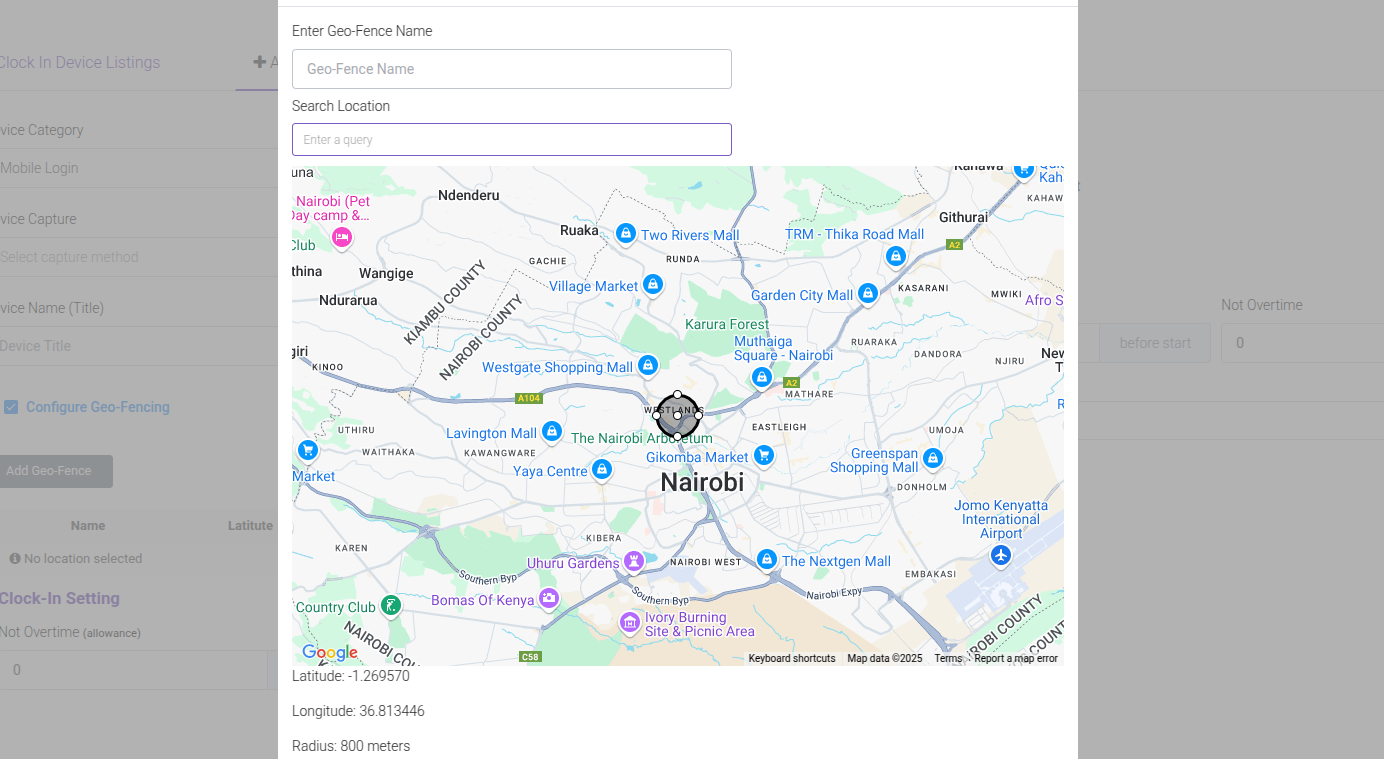
Check the box labeled Configure Geo-Fencing.
Click the Add Geo-Fence button.
A Google Map interface will open.
Use the search bar to locate the area you want to geofence.
Drag the circle to adjust the latitude and longitude.
Resize the circle to configure the attendance radius.
Once configured, click Save.
Your device is now set up and can be used to enroll employees for attendance tracking.